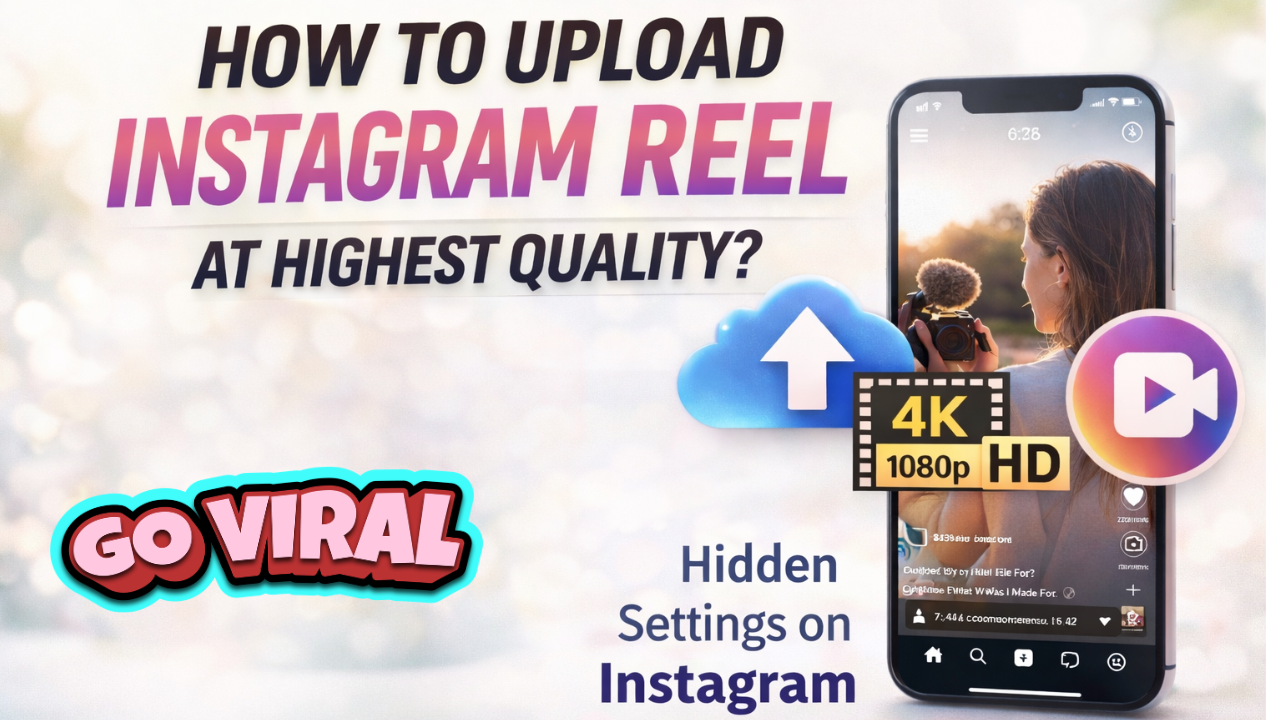
If you’ve ever uploaded a Reel that looked sharp in your gallery but blurry on Instagram, you’re not alone. Instagram compresses videos heavily, but the good news is — you can control a big part of the quality. By using the right camera apps, export settings, and upload methods, you can make your Reels look crisp and professional.
Let’s go step-by-step with practical, real tips creators actually use.
📱 Use a Pro Camera App Instead of Default Camera
Most people shoot Reels using the normal phone camera or directly inside Instagram. This is one of the biggest reasons for quality loss. Instagram’s in-app camera reduces bitrate and dynamic range.
A better option is using professional camera apps like Blackmagic Camera App. It allows you to control resolution, bitrate, color profile, and frame rate — just like DSLR settings.
Shoot your Reel in:
4K resolution
30 FPS
High bitrate mode
Even if you upload in 1080p later, starting with high-quality footage gives Instagram more data to compress, resulting in clearer output.
⚙️ Turn On Instagram “Upload at Highest Quality” Setting
Many creators don’t know this setting exists — and it makes a big difference.
To enable it:
Go to Instagram → Settings & Privacy
Tap Data Usage & Media Quality
Turn ON Upload at Highest Quality
This tells Instagram to apply less compression while uploading. Without this setting, Instagram automatically reduces quality, especially on mobile data connections.
Also, try uploading using Wi-Fi instead of mobile data, because Instagram compresses more when the connection speed is low.
🎬 Export From CapCut in Best Quality Settings
Editing apps like CapCut can either maintain or destroy your video quality depending on export settings.
Before exporting your Reel in CapCut, make sure you select:
Resolution: 1080p (or 4K if available)
Frame Rate: 30 FPS
Bitrate: High / Recommended
Codec: H.264
Avoid exporting in 720p or using “smart compression” options, because these reduce quality before Instagram even processes your video.
Also, never re-edit the same video multiple times — each export reduces clarity.
📂 Upload Reel Directly From Files (Not From Drafts)
Uploading from Instagram drafts can sometimes reduce quality because Instagram saves draft videos in compressed format.
Instead, export your final video and upload it directly from your phone’s gallery or file manager. This ensures Instagram receives the original high-quality file.
A pro tip is to:
Export video
Close Instagram completely
Reopen app
Upload fresh file
This prevents Instagram from using cached or compressed versions.
💡 Additional Pro Tips Creators Use
Here are some small but powerful tricks that make a noticeable difference:
1. Use Correct Aspect Ratio Always export in 9:16 ratio (1080 × 1920) to avoid automatic resizing.
2. Avoid Zooming Inside Instagram Zooming while uploading reduces sharpness.
3. Use Good Lighting While Shooting Instagram compression affects dark footage more. Well-lit videos always look clearer.
4. Keep Video Length Optimized Very long Reels sometimes get heavier compression. Short, optimized videos maintain quality better.
✅ Quick Quality Checklist (Before Uploading)
Before you hit post, check this:
Shot in 4K or high quality
Exported in 1080p, 30FPS, high bitrate
Instagram “Highest Quality” setting ON
Uploaded via Wi-Fi
Uploaded from gallery, not drafts
Follow these steps, and your Reels will look noticeably sharper than most creators’.