Last Updated: February 2026 | Tested on Android & iOS
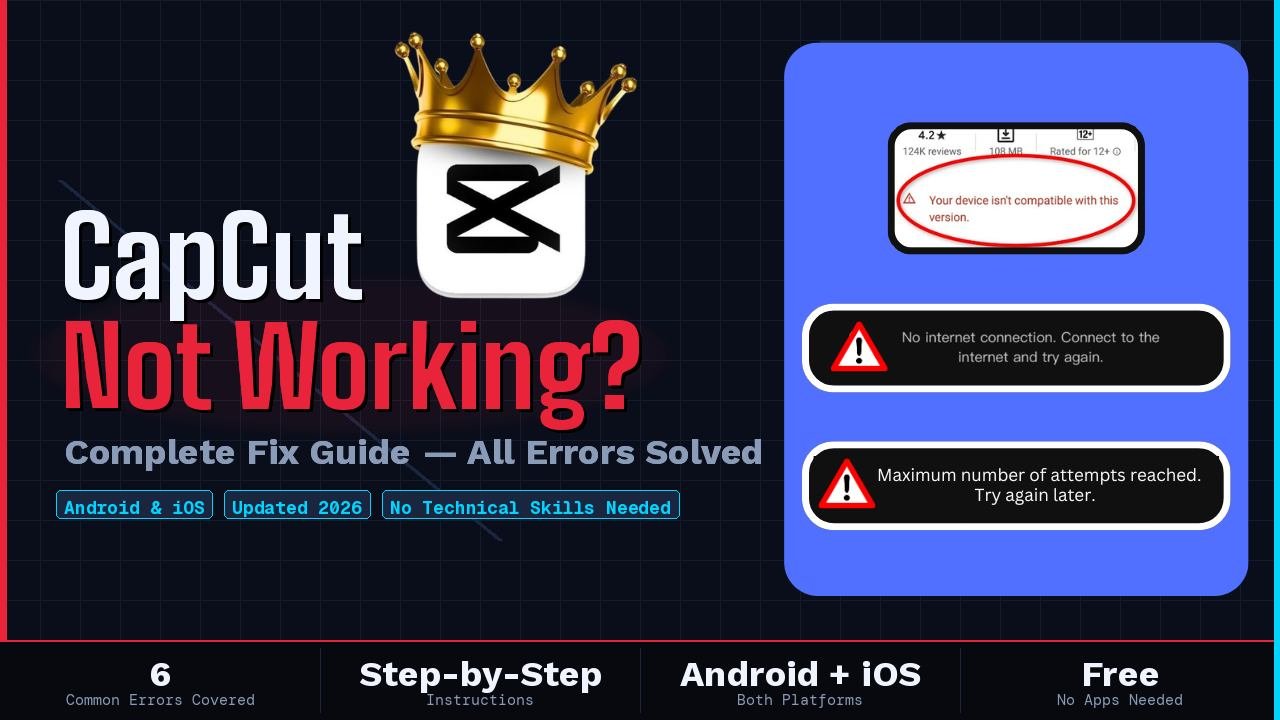
Fixes for: Device Not Compatible • App Crashing • Export Stuck • Black Screen • Login Error • No Internet Connection
CapCut has become one of the most widely used video editing apps, but like any app, it runs into errors from time to time. If CapCut is not working on your phone, the fix is usually simpler than you think. In this guide, we walk you through the exact steps to resolve each error, without needing any technical knowledge.
We cover the following errors:
Device Not Compatible
App Keeps Crashing
Export Stuck or Not Working
Black Screen on Open
Login Error
No Internet Connection Error
Let’s get started.
Fix 1: CapCut “Device Not Compatible” Error
Seeing a “Your device is not compatible with this version” message is one of the most reported issues. This can show up during installation or when trying to use certain features inside the app.
Common Reasons:
Android version is outdated (CapCut requires Android 5.0 or higher)
Device has insufficient RAM (less than 2GB)
The app version installed does not match your device’s processor type (ARM vs x86)
Step-by-Step Fix:
Update your Android version. Go to Settings > Software Update > Check for Updates. Install any available system update and restart.
Uninstall and reinstall CapCut. Sometimes an old installation causes false compatibility errors. Uninstall completely, restart your phone, then install CapCut fresh from the official Play Store or App Store.
Clear Google Play Store cache. Go to Settings > Apps > Google Play Store > Storage > Clear Cache. Then open Play Store and try installing again.
Free up RAM before opening the app. Close all background apps before launching CapCut to ensure it has enough memory to run.
Try the CapCut web version. If your phone is older and truly incompatible, CapCut has a browser-based editor at capcut.com that works on most devices without installation.
Tip: If you’re on iOS and getting this error, check that your iPhone is running iOS 13 or later. Go to Settings > General > Software Update to check.
Fix 2: CapCut App Keeps Crashing
If CapCut crashes immediately on opening, or freezes in the middle of editing, it is almost always related to memory, storage, or a corrupted cache, all of which are easy to fix.
Common Reasons:
Too many apps running in the background consuming RAM
Low internal storage, CapCut needs free space to create temporary files during editing
Corrupted app cache from a previous session or failed update
Step-by-Step Fix:
Clear CapCut’s cache. Go to Settings > Apps > CapCut > Storage > Clear Cache. This does not delete your projects, only temporary files.
Free up storage space. CapCut needs at least 1GB of free internal storage to work properly. Delete unused apps, old videos, or move files to cloud storage.
Restart your phone. A full restart clears RAM and resolves most temporary crash issues. Hold the power button > Restart, then open CapCut again.
Update CapCut to the latest version. Open the Play Store or App Store, search for CapCut, and tap Update if available. Updates often include crash fixes.
Reduce project complexity. Very long timelines or many layers can overwhelm lower-end devices. Try splitting your project into shorter segments.
Tip: Avoid running WhatsApp, Chrome, and YouTube simultaneously with CapCut. These apps use significant RAM on budget Android phones.
Fix 3: CapCut Export Stuck or Not Working
Few things are more frustrating than finishing a video edit only to have it get stuck at 0% or freeze mid-export. Here is what is likely happening and how to fix it.
Common Reasons:
Not enough free storage to save the final video file
Screen timeout interrupting the export process
Online effects or templates in your project lost internet connection mid-export
Step-by-Step Fix:
Check your available storage. A 1-minute HD video can take 200MB to 500MB. Make sure you have at least 1GB free before exporting.
Prevent screen timeout during export. Go to Settings > Display > Screen Timeout and set it to ‘Never’ or ’10 minutes’ before you start exporting.
Lower the export resolution. Try 720p instead of 1080p. This reduces processing demand and is often sufficient for social media uploads.
Ensure a stable internet connection. If your video uses online stickers, effects, or music from CapCut’s library, a stable connection is needed throughout the export.
Force close and retry. If stuck for more than 3-4 minutes, force close CapCut, reopen it, and export again. The app usually resumes from where it left off.
Tip: Plug your phone into a charger before exporting long videos. Low battery mode can throttle your phone’s processor and slow down or stop the export.
Fix 4: CapCut Black Screen Error
A black screen when opening CapCut, or a black video preview during editing, is usually a graphics or cache issue. It looks scary but is usually quick to fix.
Common Reasons:
Corrupted app cache causing a rendering failure on startup
Video format incompatible with CapCut’s preview engine
Restart your phone. A full restart resolves most black screen errors caused by memory or graphics conflicts.
Check your video format. If only the video preview is black (not the whole app), your video file may be in an unsupported format. Convert it to MP4 (H.264) using a free converter app before importing into CapCut.
Uninstall and reinstall CapCut. If clearing cache doesn’t work, uninstall the app fully, restart your phone, then reinstall from the official store.
Update your phone’s system. Outdated system software can cause rendering issues. Check Settings > Software Update for any pending system updates.
Tip: If the black screen only appears on certain imported videos, the issue is with that specific file rather than the app itself. Try re-downloading or re-recording the video.
Fix 5: CapCut Login Error
If you are seeing “Login Failed”, “Something went wrong”, or the login page is not loading at all, here are the most effective fixes.
Common Reasons:
Too many failed login attempts triggering a temporary account lock
Unstable internet connection during the login process
Try a different login method. Instead of phone/email, try ‘Continue with Google’ or ‘Continue with Facebook’. These often work when the standard login fails.
Check your internet connection. Switch between mobile data and Wi-Fi. A weak or unstable connection is the most common cause of login failures.
Wait 30 minutes if locked out. If you have tried logging in multiple times and failed, your account may be temporarily locked. Wait 30 minutes then try again with the correct credentials.
Reset your password. If you are unsure of your password, use the ‘Forgot Password’ option to reset it via email or phone number.
Check CapCut server status. Visit downdetector.com and search ‘CapCut’ to check if there’s a widespread outage. If servers are down, wait a few hours and try again.
Use CapCut without an account. Most editing features, trimming, adding text, music, transitions, and effects, work fully without logging in. Login is only required for cloud backup and some premium templates.
Tip: Make sure your phone’s date and time are set correctly. Incorrect date/time settings can cause authentication failures even when your password is correct.
Fix 6: CapCut “No Internet Connection” Error
CapCut shows a ‘No Internet Connection’ or ‘Network Error’ message even though other apps on your phone are working fine. This is one of the most reported issues and has a few reliable fixes.
Common Reasons:
Your internet connection is unstable even if other apps seem to be working
CapCut’s servers are temporarily down or under maintenance
The app does not have network permission on your device
Step-by-Step Fix:
Toggle airplane mode. Turn on airplane mode for 10 seconds, then turn it off. This resets your network connection and often resolves the error instantly.
Switch between Wi-Fi and mobile data. If you are on Wi-Fi, switch to mobile data and vice versa. CapCut may work on one and not the other.
Check app network permissions. Go to Settings > Apps > CapCut > Permissions > Make sure ‘Network access’ or ‘Internet’ is allowed.
Clear CapCut cache. Settings > Apps > CapCut > Storage > Clear Cache. Restart the app and try connecting again.
Restart your router (if on Wi-Fi). Unplug your Wi-Fi router for 30 seconds and plug it back in. This often resolves DNS issues that cause app-specific network errors.
Use CapCut in offline mode. For basic editing tasks, trimming, cutting, text overlays, adding music from your own library, CapCut works fully offline. Online features like templates and effects require internet.
Tip: Check CapCut’s official social media pages or downdetector.com to see if the issue is a server-side outage. If it is, the fix will come automatically once their servers recover.
Quick Reference: CapCut Error Fix Summary
Here is a quick summary of the fastest fix for each error:
Device Not Compatible: Update Android, clear Play Store cache, try CapCut web editor
App Crashing: Clear cache, free up storage, restart phone, update the app
No Internet Error: Toggle airplane mode, switch network, check app permissions
Final Thoughts
Most CapCut errors are caused by low storage, outdated software, or temporary connectivity issues, none of which require advanced technical knowledge to fix. Working through the steps above should resolve the problem within a few minutes.
If you are still facing an issue after trying all the steps, the most reliable next step is to uninstall CapCut, restart your phone, and reinstall the latest version from the official Play Store or App Store. This resolves the majority of persistent errors.
Have a specific error not listed here? Drop a comment below and we will update this guide with the fix.