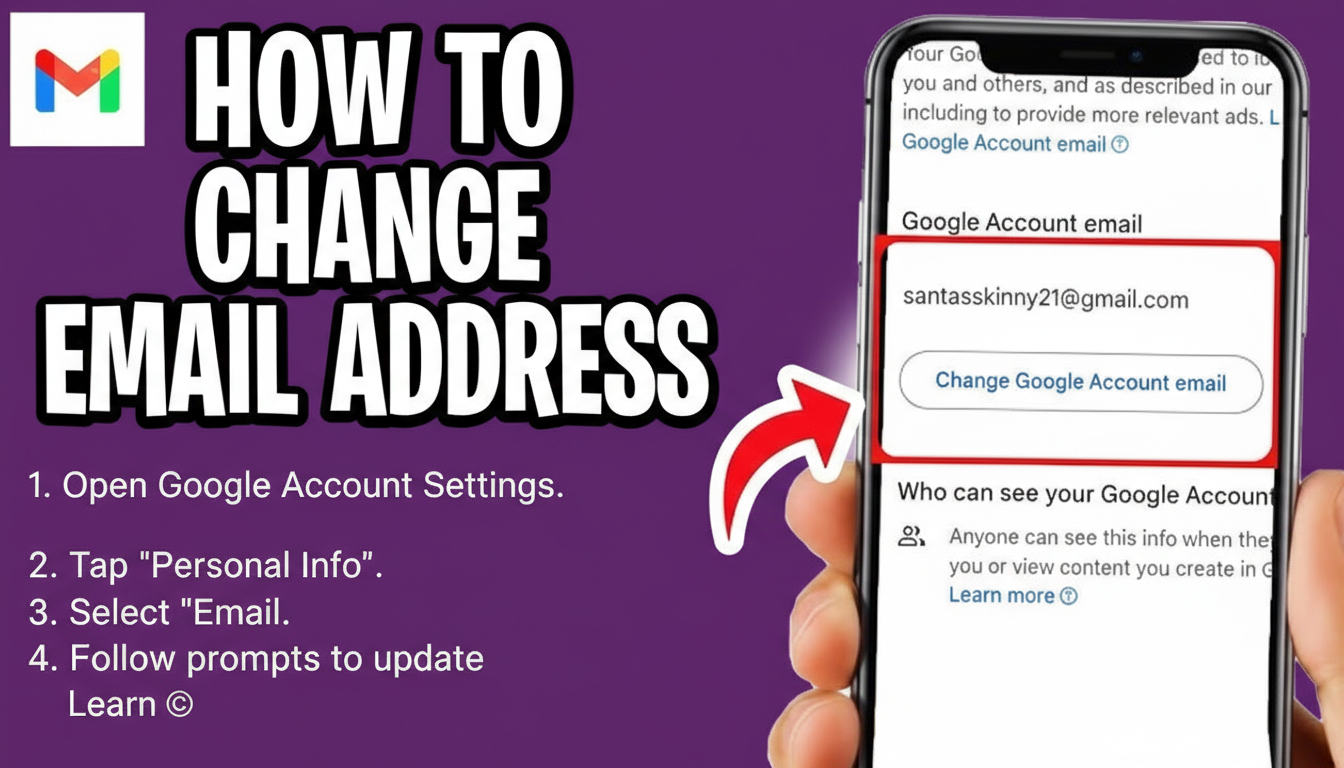
Changing an email address used to be a difficult and risky process. Earlier, users had to create a brand-new account if they wanted a different email address, which often meant losing access to old emails, app logins, and subscriptions. Because of this, many people continued using outdated or unprofessional email names.
Recently, Google introduced an update that makes changing your email address much easier. The best part is that your old email address will still work and continue receiving emails, even after you switch to a new one.
Why Changing an Email Address Was Hard Before
Previously, your email address was treated as a permanent identity for your account. If you wanted a new email name, there was no direct option to change it. Users feared missing important messages, breaking website logins, or losing access to services connected to the old email. This made the process stressful and confusing.
Advertisements
What Changed After Google’s Update
With the new update, Google allows users to change their email address name while keeping the old one active. Emails sent to your previous address will still reach you, so there is no sudden break in communication. This update is especially useful for users who created their email years ago and now want a more professional or clean email address.
How This Update Helps Users
This change is very helpful for professionals, freelancers, students, and business owners. You can now use a new email address for official or professional work, while your old email continues to receive messages. It also gives you enough time to slowly update your email on important platforms without any urgency or fear.
Advertisements
How to Change Email Address Name (Step-by-Step Process)
Follow these simple steps to change your email address name safely:
Sign in to your Google Account Open your browser and log in to your Google account using your existing email address.
Go to Account Settings Click on your profile picture and open Manage your Google Account.
Open the Personal Info Section In the account dashboard, go to the Personal info tab where your basic details are listed.
Find Email Settings Scroll down to the Contact info section and look for the email-related options.
Add or Change Email Address Choose the option to change or add a new email address. Enter the new email you want to use.
Verify the New Email Address Google will send a verification code or link to the new email. Confirm it to proceed.
Set the New Email as Primary Once verified, you can set the new email as your primary address while keeping the old one active.
Save Changes Confirm and save all changes. Your new email is now active, and your old email will continue working.
Advertisements
Important Things to Remember
Even though your old email address will still work, it’s a good idea to gradually update your new email on important websites like banking apps, social media accounts, and work platforms. This ensures better organization and long-term security.
Final Words
Google’s latest update has made changing an email address simple, safe, and stress-free. You no longer have to worry about losing emails or breaking account access. With both old and new email addresses working together, you can confidently switch to a better email name whenever you want.