CapCut is one of the most popular video editing apps today, especially among content creators, YouTubers, and Instagram Reel makers. While it was originally designed for mobile devices, you can now easily install and use CapCut on your PC for better performance, a bigger screen, and smoother editing.
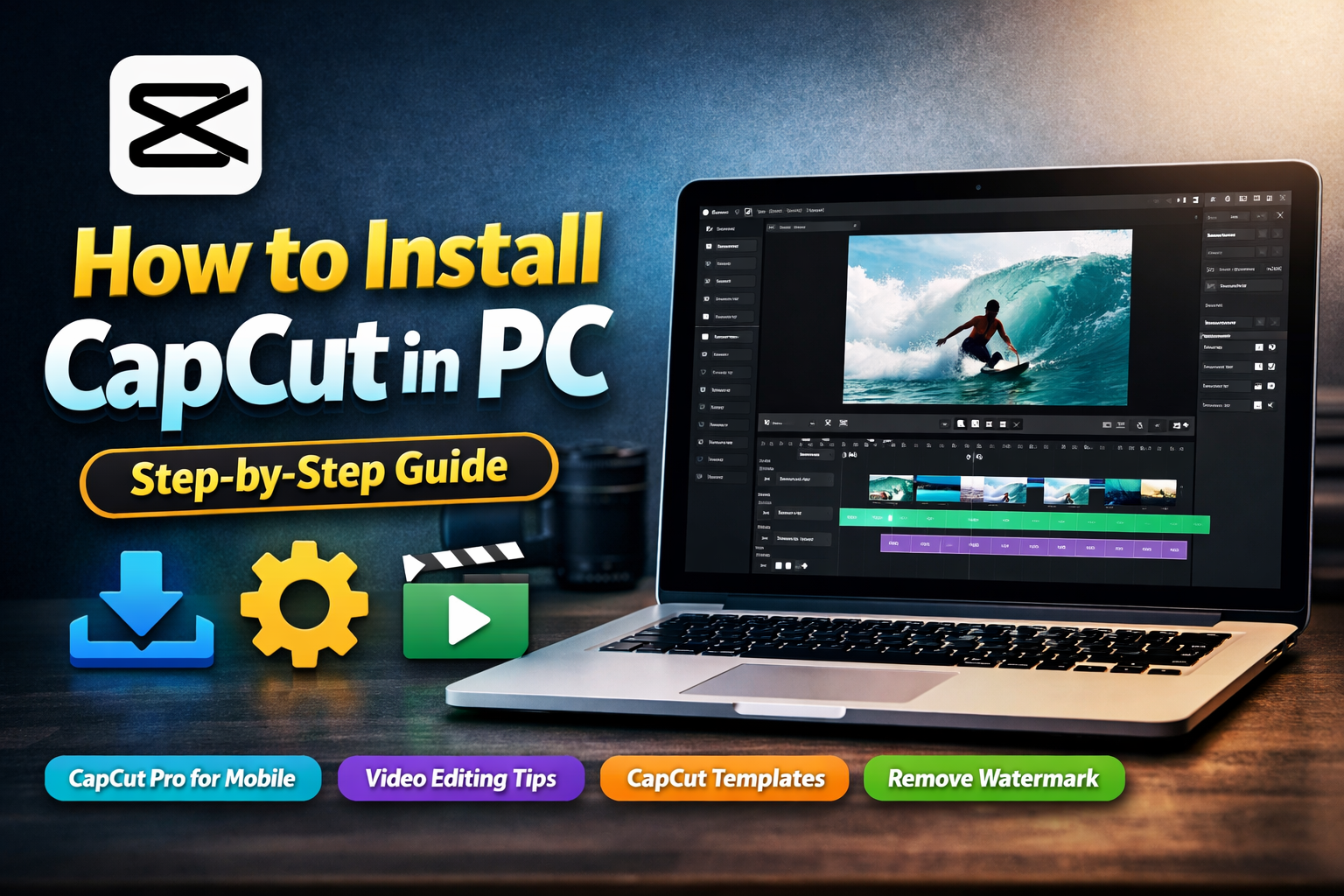
In this guide, you’ll learn how to install CapCut on PC step by step, along with important tips to get the best editing experience.
Why Use CapCut on PC Instead of Mobile?
Editing on a computer gives you more control and flexibility compared to a smartphone. You get a larger workspace, precise timeline control, and faster rendering speeds.
Many creators who start editing on mobile eventually switch to PC because it allows them to handle longer videos, add advanced effects, and manage multiple layers more easily.
Method 1: Install CapCut on PC Using Official Desktop Version (Recommended)
The easiest and safest way is to download CapCut’s official desktop software.
Step-by-Step Process
Step 1: Visit the Official CapCut Website Go to the official CapCut website using your browser.
Step 2: Download the PC Version Click the “Download for Windows” button. The installer file will start downloading automatically.
Step 3: Install the Software Open the downloaded file and follow the on-screen installation instructions.
Step 4: Launch CapCut Once installed, open CapCut and log in using your Google, TikTok, or email account.
Step 5: Start Editing Now you can import videos, add effects, transitions, and export high-quality content directly from your PC.
This method is best because it provides smooth performance and all official features without needing an emulator.
Advertisements
Method 2: Install CapCut on PC Using Android Emulator
If the official version is not available for your system or you prefer the mobile interface, you can use an Android emulator.
Popular emulators include:
BlueStacks
LDPlayer
NoxPlayer
Steps to Install via Emulator
First, install an Android emulator on your PC. After that, open the emulator and sign in to the Google Play Store. Search for CapCut, click install, and launch it like a normal mobile app.
This method works well but may consume more RAM compared to the official desktop version.
Advertisements
System Requirements for Running CapCut on PC
Before installing, make sure your computer meets basic requirements:
Windows 10 or above
Minimum 8GB RAM (4GB may work but slower)
SSD storage recommended
Updated graphics drivers
A better system ensures smoother preview and faster exports.
Tips for Better Editing Experience on PC
To get the best performance while using CapCut on your computer, keep these practical tips in mind:
Use lower preview quality while editing heavy projects
Close background apps to free RAM
Store media files on SSD for faster loading
Keep CapCut updated for latest features
Common Issues While Installing CapCut on PC
Sometimes users face minor problems during installation.
If CapCut does not open, try updating Windows and graphics drivers. If it crashes during editing, reduce preview resolution or reinstall the app. For emulator users, allocating more RAM in emulator settings usually fixes lag issues.
How CapCut on PC Helps Creators Grow Faster
Using CapCut on PC can significantly improve your workflow. You can edit longer YouTube videos, create professional reels, and manage multiple projects efficiently.
Many creators also combine PC editing with mobile editing. For example, they start editing on PC and later finalize details on mobile using CapCut Pro features, try trending CapCut templates, or follow detailed video editing tutorials to improve their skills.
You can also explore CapCut alternatives if you want advanced color grading tools, and learn smart ways to remove watermark from CapCut exports for professional content publishing.
Final Thoughts
Installing CapCut on PC is simple and takes only a few minutes. The official desktop version is the best option because it offers better performance, stability, and full editing features.
If you’re serious about content creation, using CapCut on PC can save time, improve video quality, and help you create more professional content for YouTube, Instagram, and other platforms.
If you want, I can also write SEO meta title, description, and FAQs for this article to help you rank faster on Google.